AI Image Generator
Open a separate workflow for creating images from prompts.

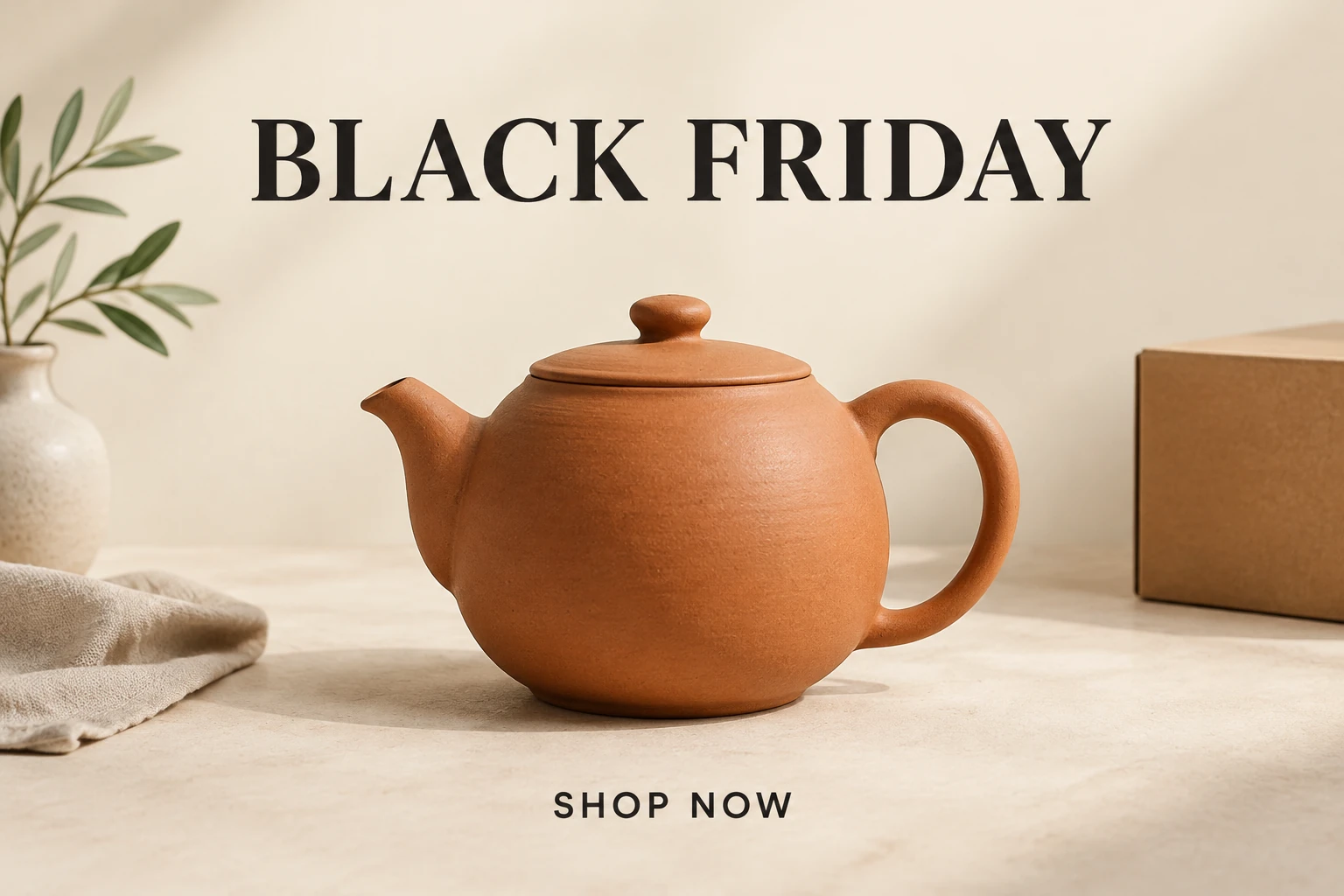
A Black Friday Poster Maker helps you explore a campaign visual before adding sale details. On kize.ai, use Text to Image to create a fictional original product poster from an editable prompt, or use Image to Image with one photo of your real product. This guide focuses on warm ivory, terracotta and soft black, with a handmade ceramics feel and generous whitespace. Start by describing the product and layout, then inspect the result. After downloading, add confirmed offers, dates and any required legal copy in your usual editor.
Use Text to Image for a fictional original product poster; enter an editable prompt, with no photo upload. Use Image to Image for a real product; upload one photo and enter an editable prompt describing how to present it. This mode adapts the uploaded item—the example teapot is not substituted for it.
For Image to Image, choose one clear photo that shows the product’s outline, color and important markings. Avoid cropping off small but defining parts. Describe the layout directly: for example, place the item to the right and reserve a large blank area on the left. Write the style in the prompt; there is no dedicated style preset.
Name the visual ingredients you want: warm ivory, terracotta, soft black, gentle side lighting and a soft grounded shadow. Ask for generous margins and enough open space for a brief headline. Keep requested lettering short, and remember that the prompt guides the image rather than providing editable type.
Select from the current Seedream 5.5 size and aspect options. Check the credit quote shown by Generate before starting. Review generation status in History. Inspect the product shape, count, color, markings, materials and lettering. If one detail needs work, change one prompt variable at a time—such as light direction or product placement—so you can judge what changed.
A sale poster can make its point without filling every corner. For a ceramics campaign, warm ivory gives the product room, terracotta echoes the material, and soft black can anchor a short headline. The example’s matte rounded body, curved handle, short spout and fitted lid create a recognizable silhouette. Gentle side lighting can show form and texture, while a soft shadow helps the object sit naturally on the surface. Keep clear margins around both the product and the space reserved for campaign copy.
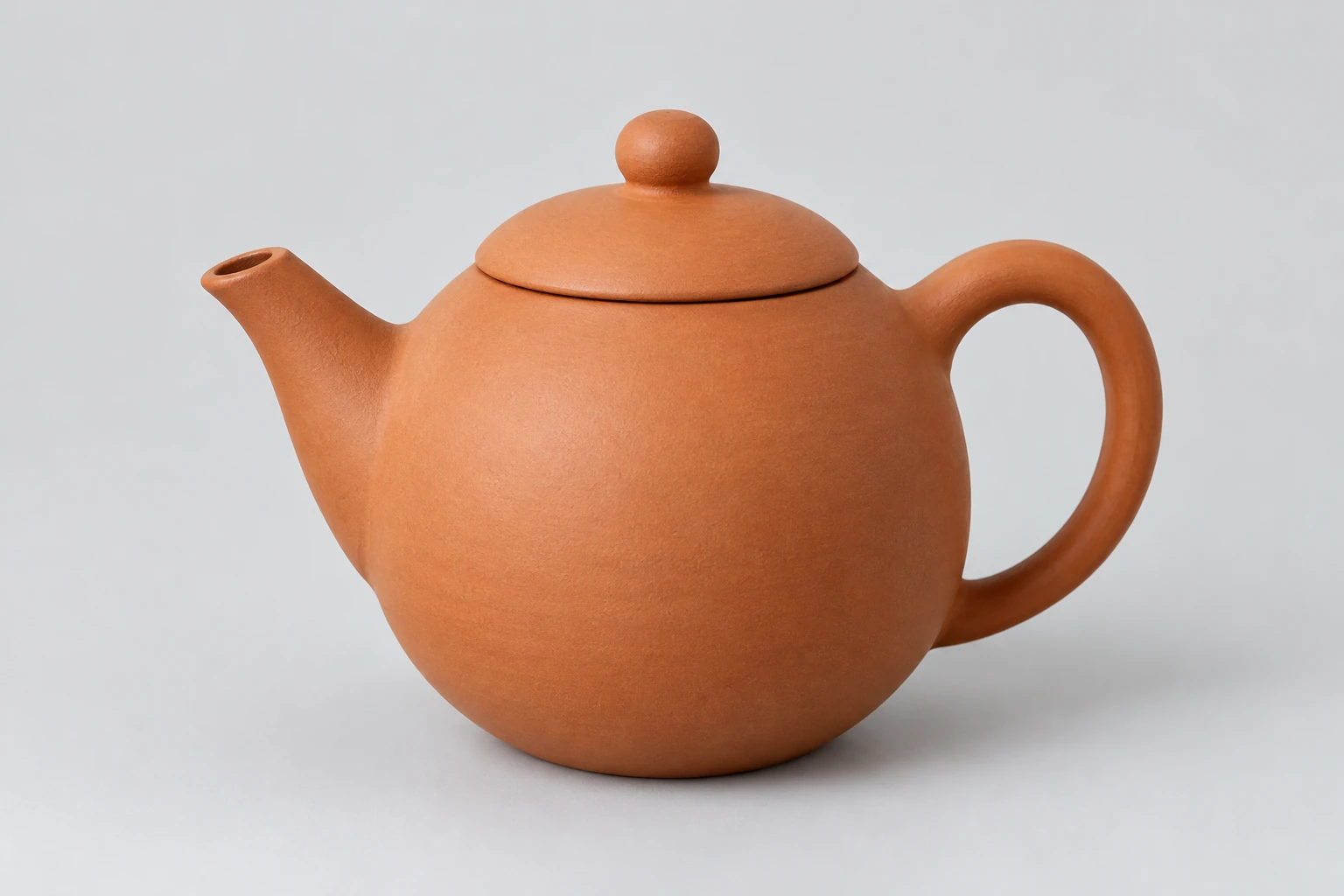
Text to Image suits an original concept when you do not need to show a specific item. Image to Image suits a campaign based on a real product photo: upload one image and prompt the model to adapt that actual product. Use a photo with a clear outline and visible defining details. After generation, compare the result with the source, checking the outline, small parts, color, count, labels and materials. If a detail changes, adjust one prompt variable at a time and review the next result against the same photo.
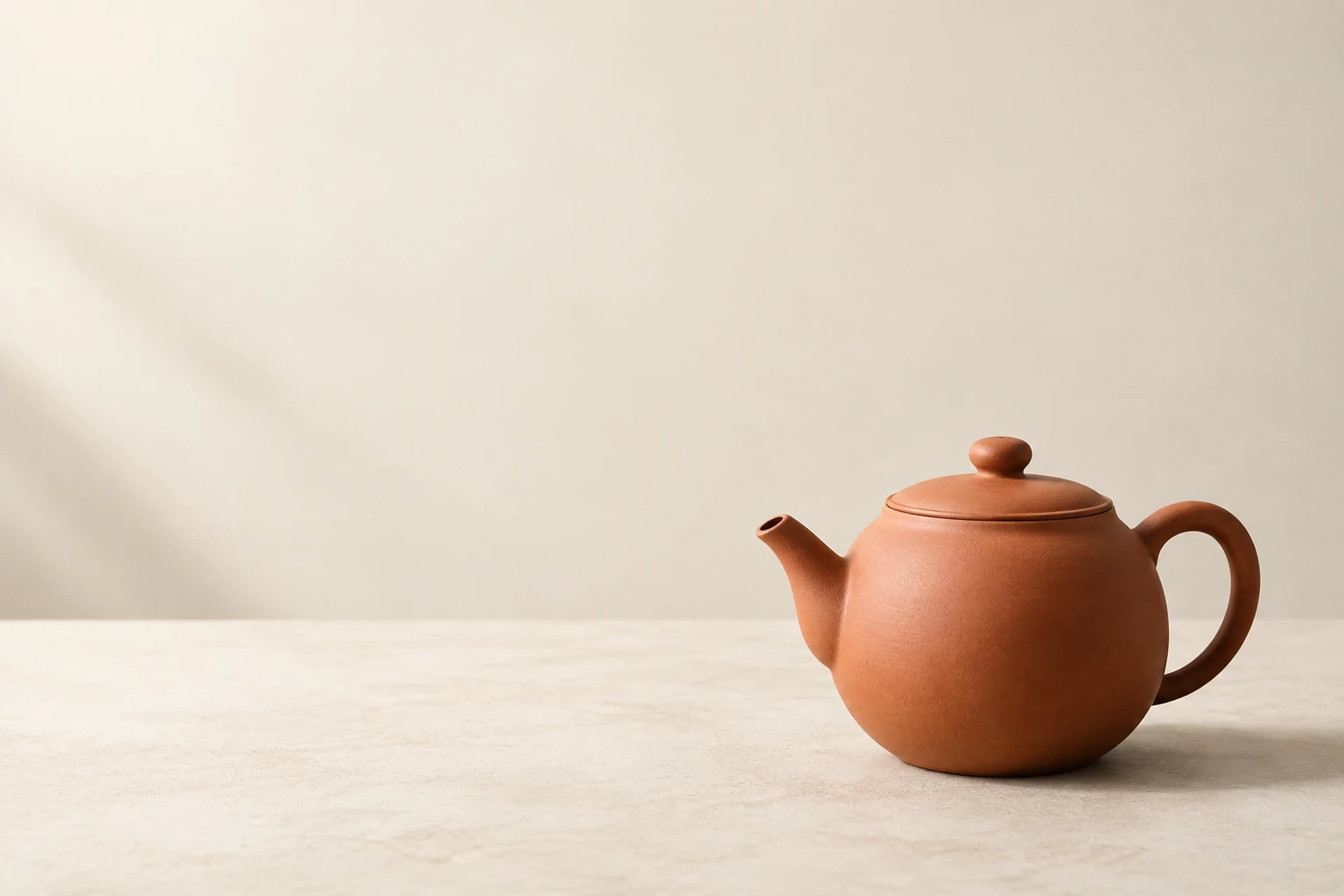
The prompt can request the exact short phrases “BLACK FRIDAY” and “SHOP NOW,” but inspect their spelling and appearance in the image. Add final precise lettering in your usual editor after downloading. Enter the real merchant offer, discount, dates and terms there as well, and verify each against the approved campaign information. Leave enough margin and open space for the final type to fit without covering the product.
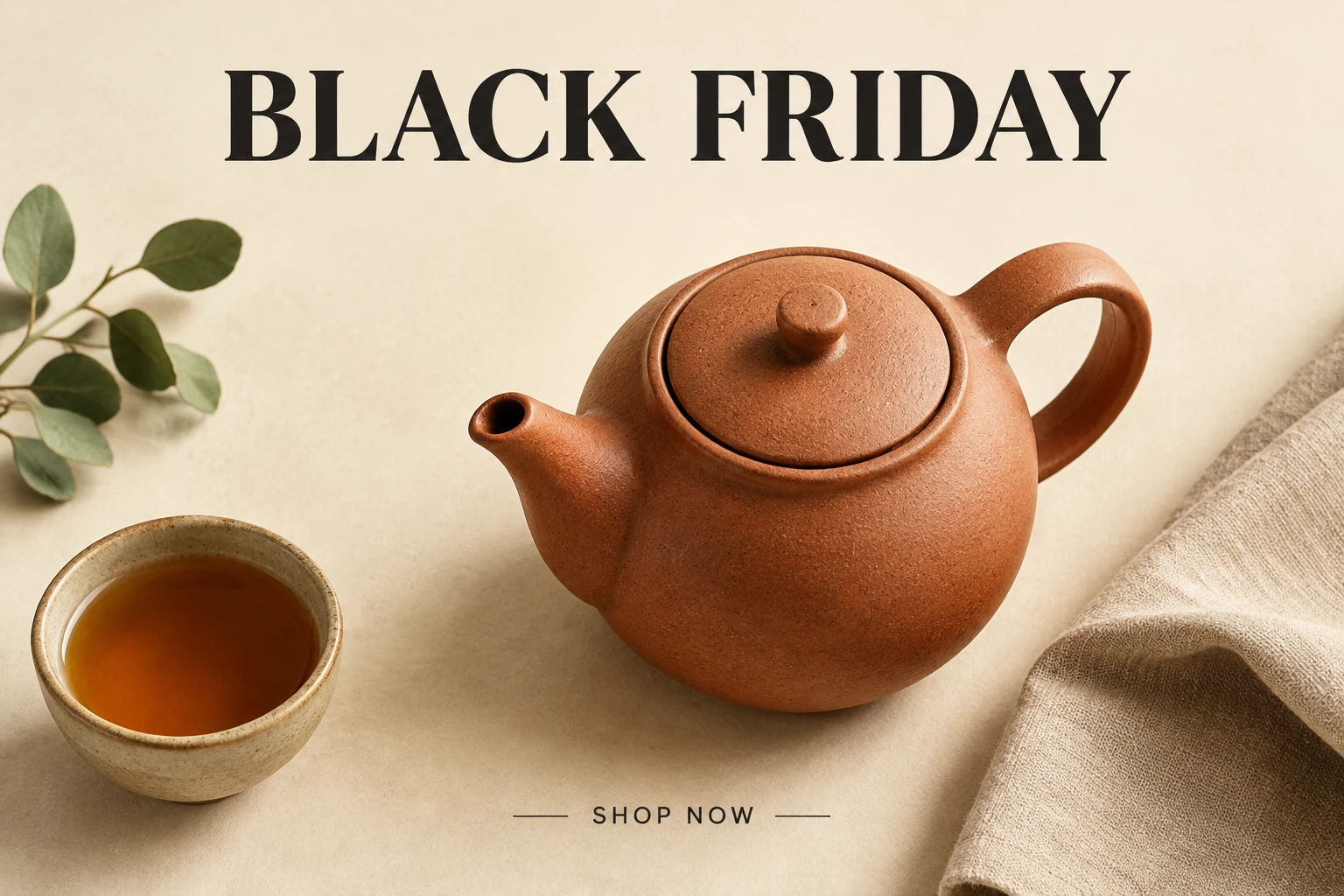
Before publication, check the final image at the actual dimensions and placement you intend to use. Confirm the crop, margins, product details, headline spelling, offer terms and legibility at the display size. For print, check the dimensions and image quality required by your chosen production process; for a screen placement, preview the asset at its intended size. The generator offers current size and aspect choices, but final preparation belongs in your usual editing and production tools.
Access depends on the credits and offers currently available to your account. Check the live credit quote shown by Generate and your current account balance before starting; no particular free allowance is assured.
Image to Image uses one uploaded product photo with an editable prompt. Text to Image uses an editable prompt and does not require or accept an upload for that mode. For the ceramics example, keep the complete handle and spout in view.
Choose the current Seedream 5.5 settings you want and check the credit quote shown by Generate. Compare that live quote with your current account balance before generating.
Waiting time varies. Check the generation status in History rather than relying on a fixed completion time.
Inspect any generated lettering, then add or correct the final headline in your usual editor. Enter and verify the actual discount, dates, terms and required legal details against your approved merchant information before publication.
Use your usual editing and production tools to check the image at the intended placement and actual dimensions. Review crop, margins, legibility and image quality against the requirements for that screen or print use; the workflow does not promise vector or print-PDF export.
Open a separate workflow for creating images from prompts.
Explore a separate image-based type concept.
Explore a separate image-making workflow with a different creative direction.
Explore a separate video workflow for another campaign format.
kize.ai · Updated