1. Choose text or a reference
Select Text to Image to start from words without an upload. For a reference-led composition, select Image to Image and an available model that supports it, then add one suitable image.

A clear message, made visual
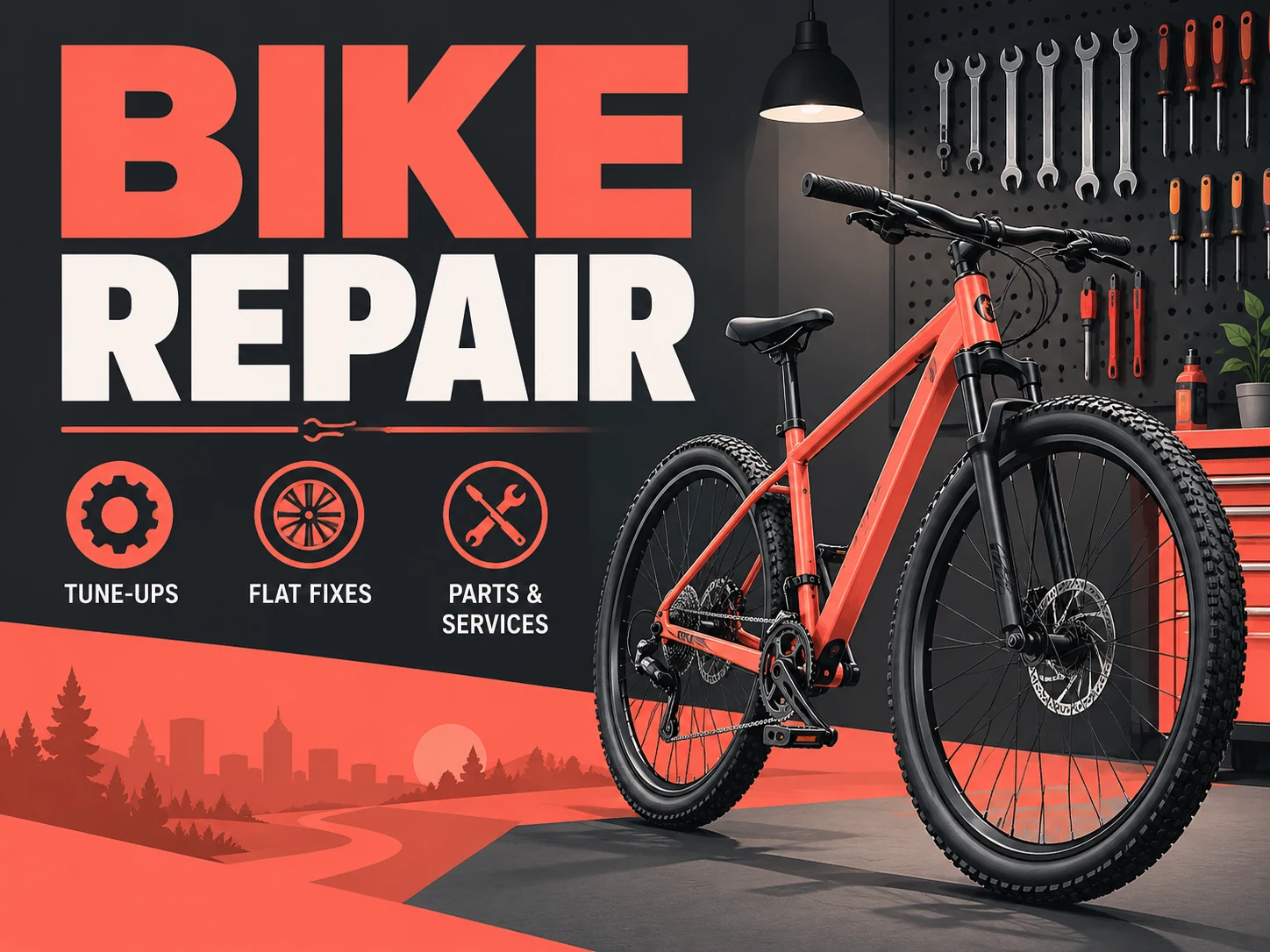
Kize’s business flyer maker introduces one service, opening or offer in a compact image. Use Kize to build a company flyer around your audience’s next action: visit, enquire or book. Describe the real business message and desired visual style before generating.
Create a business flyer
Prepare the company name, one headline, a short service description and a contact action. If you upload a reference, explain which identity details must be retained and check the result against the original.
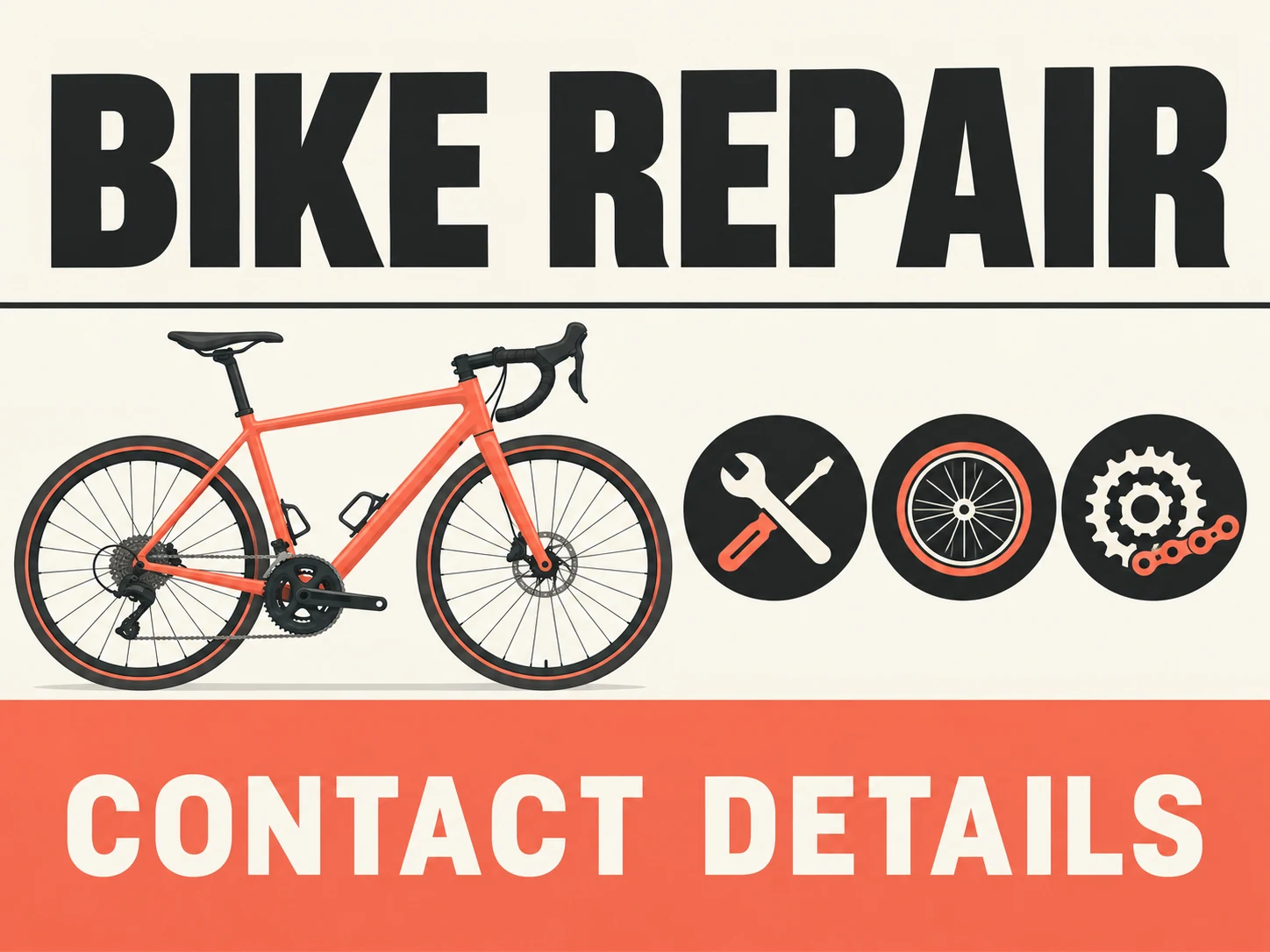
Select Text to Image to start from words without an upload. For a reference-led composition, select Image to Image and an available model that supports it, then add one suitable image.
Edit the starting prompt with your own headline, dates, offer and contact action. Describe one visual style. Ask for clear spacing and keep exact wording in quotation marks.
Choose from the ratios and parameters available for the selected model. Read the current credit quote and balance, then submit when the brief is ready.
Follow the task in History. Check spelling, numbers, photo details and crop before using the download action. A new generation or supported image edit can refine the result; review the next quote before submitting.

Explain the practical work offered and give prospective customers a clear enquiry action.
Give the opening date and location more prominence than a long company history.
State what is included and any essential conditions. Check generated prices and dates against the real promotion.
A company flyer and a business flyer can use the same tool. Choose a factual message for the particular offer rather than listing every service, award and contact channel in one small image.
The download is an image, not a layered design file. Confirm the actual pixel dimensions before printing. If you need exact final typesetting, add or correct the final text in a suitable editor. Do not rely on an AI-drawn QR code for a working link.
It creates a business flyer image from your written direction or a supported reference. Explain the practical work offered and give prospective customers a clear enquiry action.
No photo is needed for Text to Image. Image to Image uses a reference when the selected model supports it. Keep the upload focused on the subject you want to retain.
Check the credits available in your current account or guest browser. Generation uses the displayed credit quote; preparing a brief does not submit a paid generation. Do not assume a free allocation is available.
The live quote depends on the model and settings you select. Review the quote before every submission, including a new version or reference edit.
Use the submitted task’s status and any estimate shown in History. Processing time depends on the model, settings and queue; there is no fixed completion time for every flyer.
You can revise the prompt and create another version, or use an available reference-editing model. The result does not contain independently editable text layers. Verify names, numbers and spelling each time.

Put one dish first and keep its price and availability close together. Use a real photograph for a specific menu item.

Emphasize the viewing date and contact action while keeping the property photograph recognizable.

Name the subject and student level before explaining the lesson format and enquiry action.

Plan a market, workshop or neighborhood gathering around one large headline and a clear place and date.
Use the editable starting prompt to describe your business flyer. Keep the most important information short, choose an available model and review the quote before generating.
Create a business flyerkize.ai · Updated