1. Choose text or a reference
Select Text to Image to start from words without an upload. For a reference-led composition, select Image to Image and an available model that supports it, then add one suitable image.

A clear message, made visual

Kize’s tutoring flyer maker helps the right students recognize your service. Describe the subjects, level, lesson format and genuine availability. Kize can turn this brief into a visual direction for a community noticeboard or a digital announcement.
Create a tutoring flyer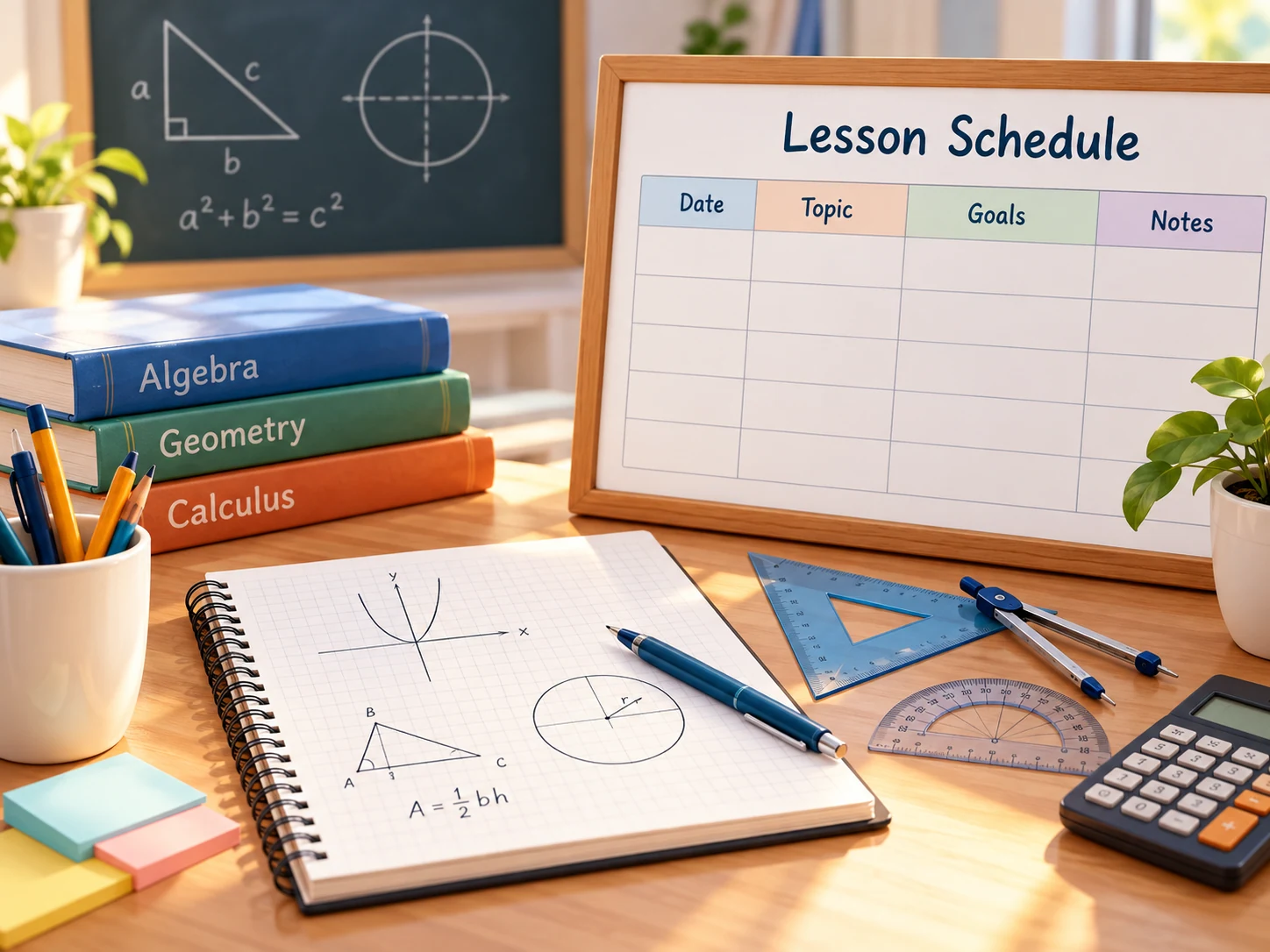
Prepare the subject, age or grade range, online or in-person format, service area and enquiry route. Include qualifications and prices only when accurate, and avoid promises of guaranteed results.
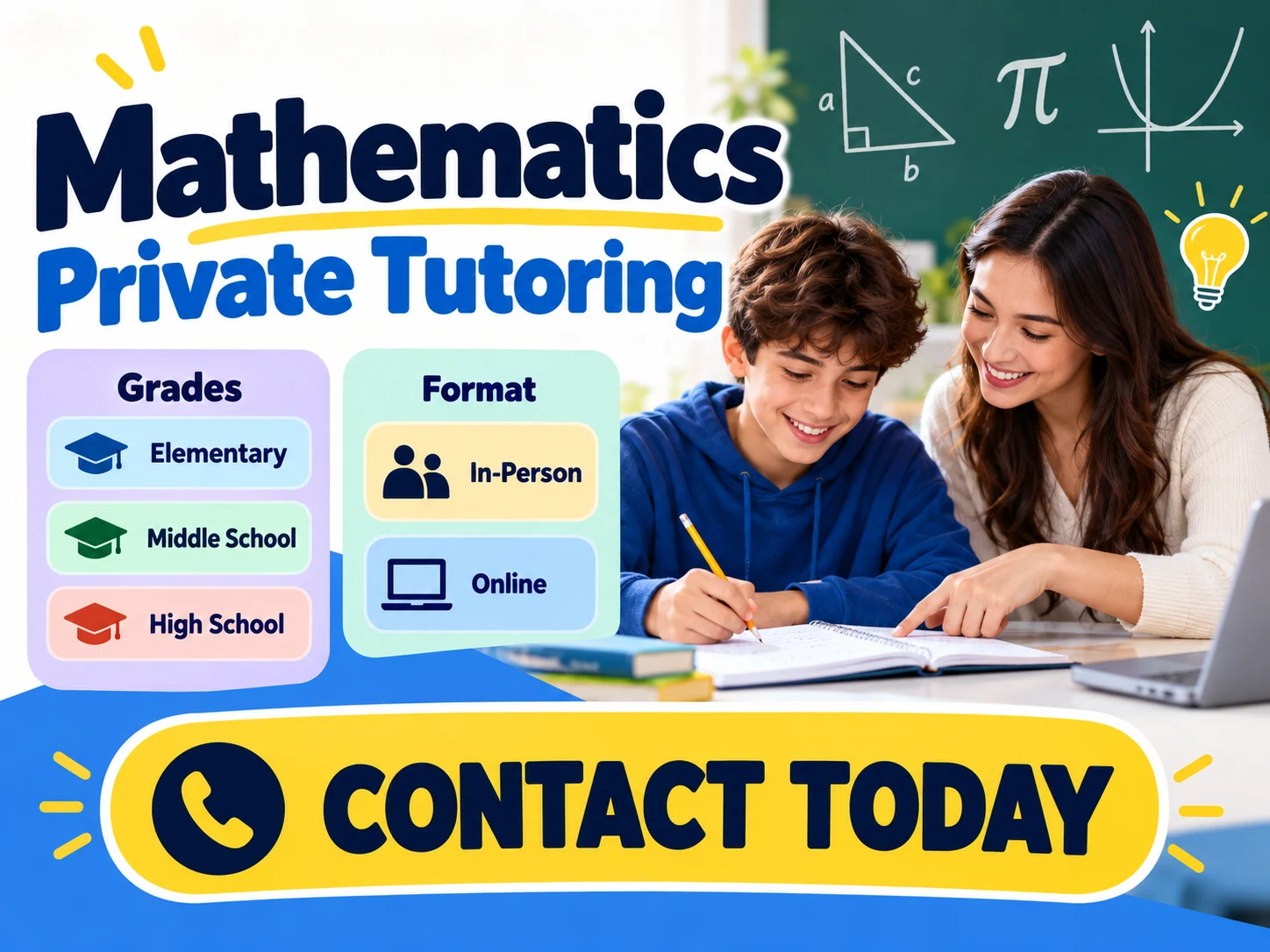
Select Text to Image to start from words without an upload. For a reference-led composition, select Image to Image and an available model that supports it, then add one suitable image.
Edit the starting prompt with your own headline, dates, offer and contact action. Describe one visual style. Ask for clear spacing and keep exact wording in quotation marks.
Choose from the ratios and parameters available for the selected model. Read the current credit quote and balance, then submit when the brief is ready.
Follow the task in History. Check spelling, numbers, photo details and crop before using the download action. A new generation or supported image edit can refine the result; review the next quote before submitting.
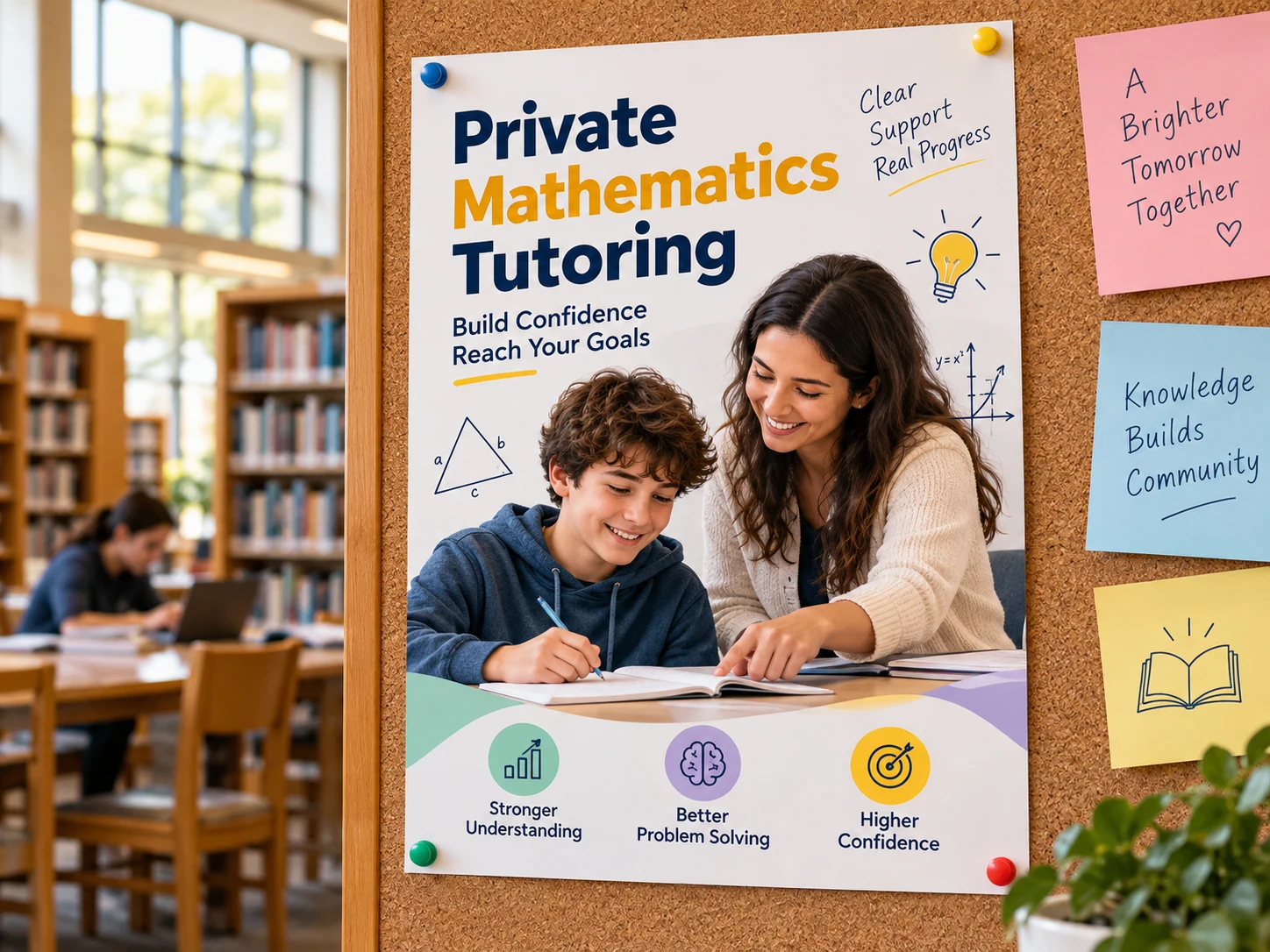
Name the subject and student level before explaining the lesson format and enquiry action.
Identify the actual course or exam covered without implying affiliation or guaranteed results.
Describe the intended level and real schedule, and explain how families can ask about places.
A tutor flyer should explain the lesson offering rather than promise a grade. Keep qualifications factual and make online or local availability clear so enquiries match the service.
The download is an image, not a layered design file. Confirm the actual pixel dimensions before printing. If you need exact final typesetting, add or correct the final text in a suitable editor. Do not rely on an AI-drawn QR code for a working link.
It creates a tutoring flyer image from your written direction or a supported reference. Name the subject and student level before explaining the lesson format and enquiry action.
No photo is needed for Text to Image. Image to Image uses a reference when the selected model supports it. Keep the upload focused on the subject you want to retain.
Check the credits available in your current account or guest browser. Generation uses the displayed credit quote; preparing a brief does not submit a paid generation. Do not assume a free allocation is available.
The live quote depends on the model and settings you select. Review the quote before every submission, including a new version or reference edit.
Use the submitted task’s status and any estimate shown in History. Processing time depends on the model, settings and queue; there is no fixed completion time for every flyer.
You can revise the prompt and create another version, or use an available reference-editing model. The result does not contain independently editable text layers. Verify names, numbers and spelling each time.

Introduce the event, intended families and joining instructions without crowding the flyer with a full timetable.
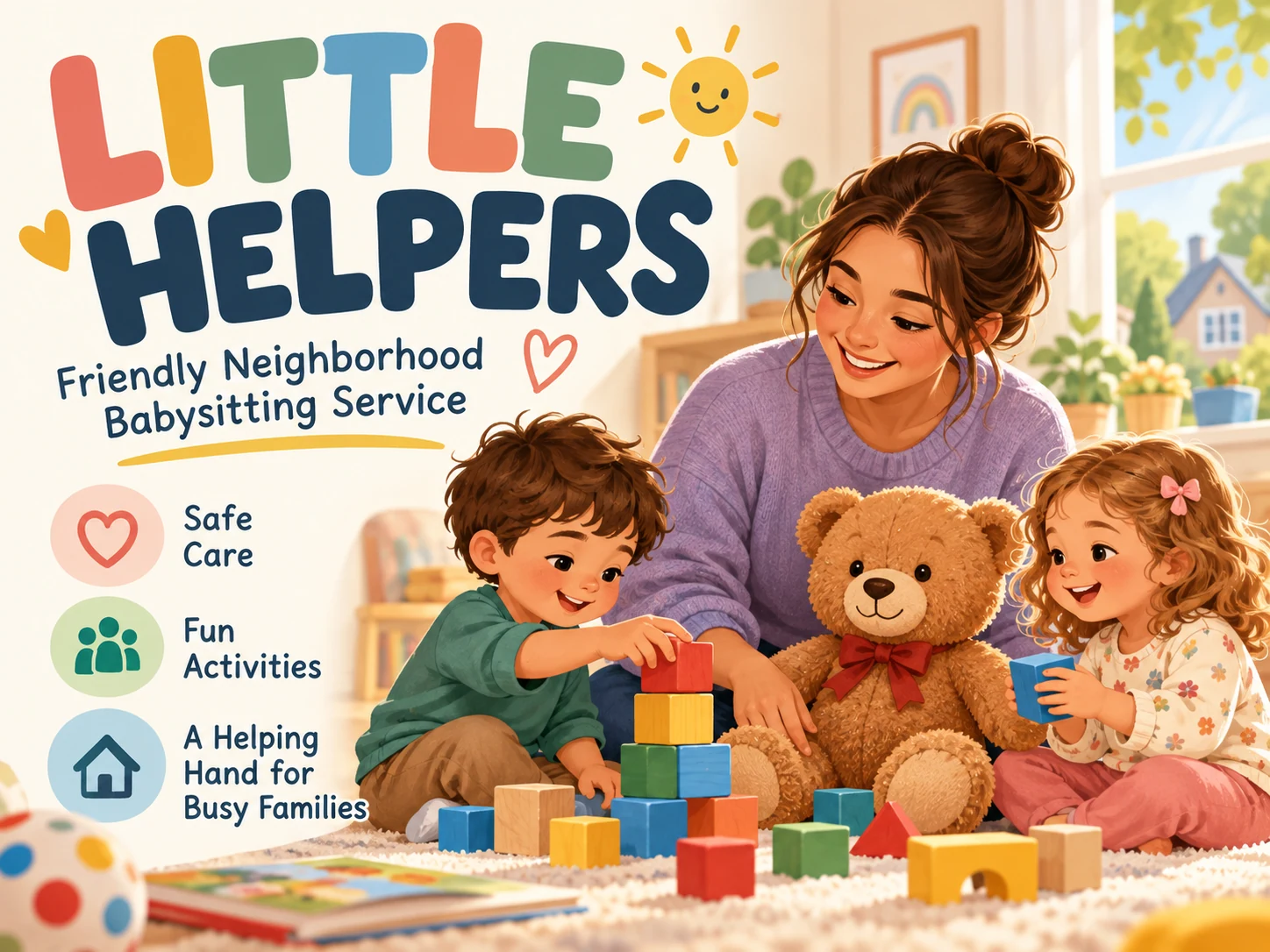
Lead with the days or time windows you actually offer and one clear way for parents to ask about availability.

Explain the practical work offered and give prospective customers a clear enquiry action.

Plan a market, workshop or neighborhood gathering around one large headline and a clear place and date.
Use the editable starting prompt to describe your tutoring flyer. Keep the most important information short, choose an available model and review the quote before generating.
Create a tutoring flyerkize.ai · Updated